Guide
CutKit Interface Guide
A practical CutKit manual: project setup, material intake, edit notes review, Edit progress, tasks, documents, and team access.
Service logic
How data moves through CutKit
CutKit is organized as a production chain. Settings creates the project frame, Source records set facts, Edit shows scene state, and Tasks turns notes and separate work into managed assignments.
Project, dates, scripts, members, permissions, tags, and readiness rules.
Shooting days, received status, backup/proxy/sync, documents, scenes, comments.
Episodes, scenes, editing status, duration, script, edit notes, and decisions.
Graphics, sound, ADR, color, QC, rights, subtitles, roadmap, and external links.
Quick routes
If you opened CutKit for a specific job
Name -> project type -> shooting dates -> scripts -> members.
Source Receive materialMark the day, upload documents, fill scenes, and check readiness.
Docs Upload edit notesFile, PDF, XLSX, images, or phone QR scanner with OCR review.
Edit Check editingOpen a scene, inspect script/notes, set status and comments.
Tasks Assign workCreate a task, assignee, roadmap, deadline, and performer link.
Help Solve an issueExtra dates, OCR mistakes, access, statuses, empty tabs, feedback.
Minimum route
Fast Start
Use this for your first project. If your team already works in CutKit, treat it as a setup checklist.
- Create a project. On Projects, click “New project”, enter a name, and choose series or film.
- Add dates. In Settings, enter shooting days manually, use the calendar, or upload a plan. Confirmed dates create Source rows.
- Upload scripts. Review the breakdown screen: episodes, scenes, warnings, and possible gaps.
- Configure Docs. Decide whether documents will be uploaded into CutKit. If yes, choose edit notes, camera, sound, DIT, or custom types.
- Fill Source. For each day, mark received material, volume, backup/proxy/sync, documents, and shot scenes.
- Check Edit. Script and Source scenes should appear on the edit map with clear statuses.
- Create Tasks. Anything that needs separate work belongs in a task: assignee, deadline, roadmap, files, and links.
- Grant access. Real users get login access; outside performers can be tracked as virtual participants and links.
Good first result
- Source has shooting-day rows.
- Edit shows episodes and scenes.
- Docs works in a clear mode: checkbox or file upload.
- Tasks can be created without returning to Settings.
Can wait
- Every custom Source field.
- Perfect table presets.
- Full project tag catalog.
- Fine-grained Ready for Edit rules.
Settings
1. Create and Configure a Project
Settings defines the project frame. The more accurately dates, scripts, and members are described here, the less cleanup Source and Edit will need later.
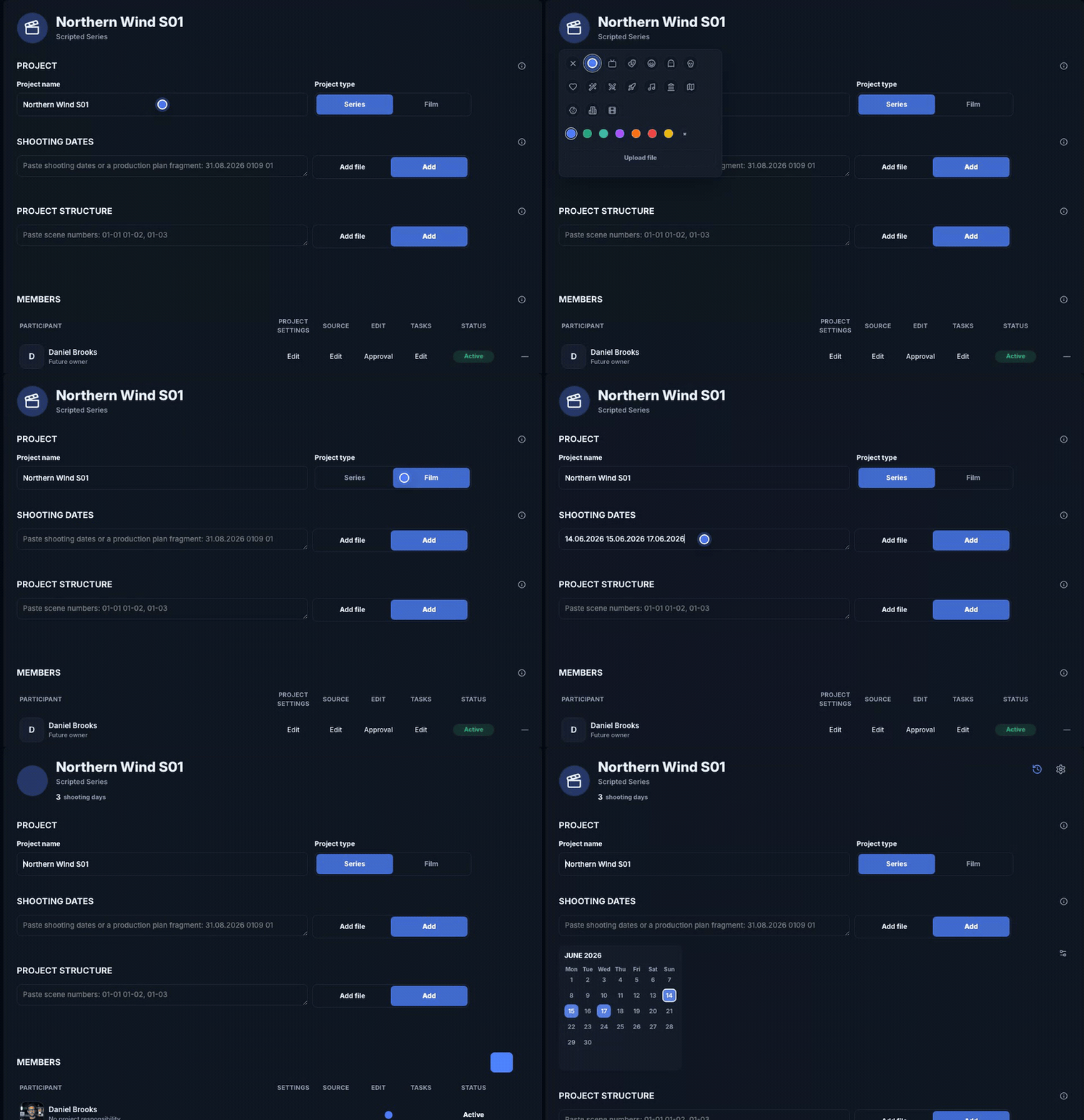
Setup order
- Enter a project name. Once you leave the field, the name is saved and becomes visible in the project list.
- Choose type: series for episodes or film for one continuous structure.
- Add dates. Short input such as
1406should mean 14.06 of the current year, but always inspect the calendar after import. - Upload scripts. The review screen lets you confirm which episodes and scenes will be created.
- Add members. Set role, contacts, and access to Settings, Source, Edit, and Tasks.
- Configure system settings: date format, Ready for Edit, tags, export, and access rules.
Important. Scripts are optional, but without them CutKit cannot show scene text or reliably connect edit notes to the canonical project structure.
Source
2. Material Intake
Source is the factual intake log. A logger or coordinator records what arrived from set, which documents are attached, and which scenes can move forward.
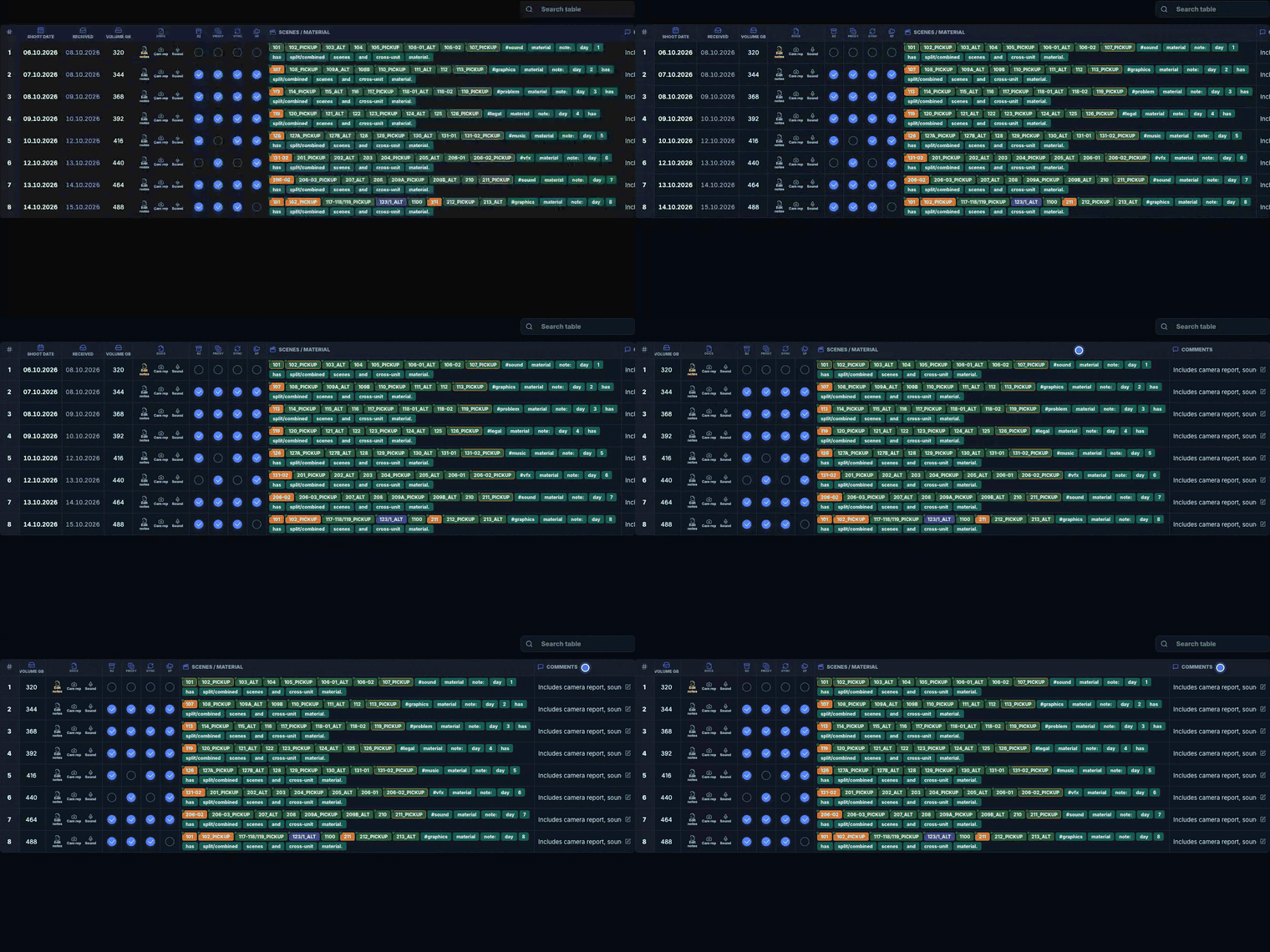
Daily intake
- Open the correct shooting-day row.
- Mark received status and volume if the project tracks it.
- Fill backup/proxy/sync and other technical checkboxes.
- Add scenes manually or through edit-note import.
- Leave comments and tags for visible problems.
Docs column
- If documents are not uploaded into CutKit, Docs works as a regular checkbox.
- If uploads are enabled, the first click asks which document types are expected.
- With one type, a click opens that upload directly.
- With several types, the column expands and the user chooses a slot.
Docs states
- Grey
- Expected, but no file yet.
- Blue
- Documents marked manually without upload.
- Orange
- Some documents exist or review is required.
- Green
- The expected set is closed.
Practice. Do not turn Source into a column for every possible edge case. Keep one full coordinator preset and one compact review preset.
Docs
3. Documents, Edit Notes, and OCR
Docs stores shooting-day documents. Edit notes are smart: CutKit recognizes scenes and links pages to Edit. Other documents are stored as technical attachments.
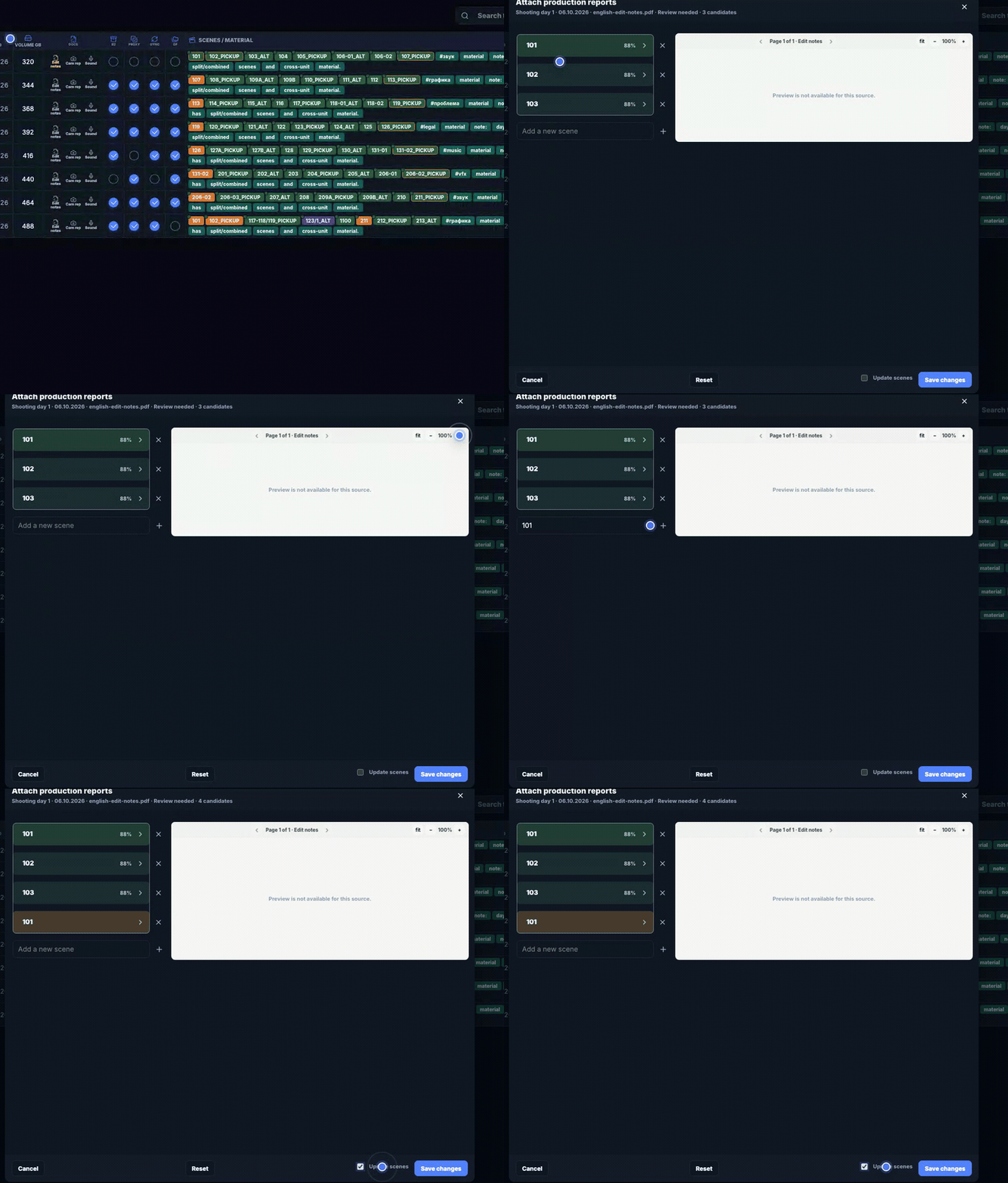
Edit notes
Script supervisor notes, continuity notes, or edit-note documents that list shot scenes.
Parsed and can populate Source/Edit.Camera report
Camera report, camera cards, technical camera and media notes.
Stored and previewed for now.Sound report
Sound report: tracks, files, takes, and sound-team notes.
Stored and previewed for now.DIT / offload
DIT report, offload, checksum, backup, transfer and verification notes.
Stored and previewed for now.Upload edit notes
- In Source, click Docs in the shooting-day row and choose the edit-notes slot.
- Attach a PDF, image, XLSX, or use the phone QR scanner.
- On the phone: scan QR, take several photos, crop if needed, then tap Send.
- On the review screen, check scene numbers, pages, confidence, and evidence highlight.
- Correct wrong numbers, remove noise, and add missing scenes manually.
- Enable “Fill scenes” if recognized scenes should populate the Source row.
- Click Import. After that, pages are available in Edit on matching scenes.
Quality. The system normalizes images for storage and preview. OCR still needs readable text, so keep the sheet straight and avoid cutting off scene numbers or page labels.
Layouts
4. Columns, Field Types, and Presets
Tables can be adapted to the project, but data remains shared. Presets only change view, width, order, and visible columns.
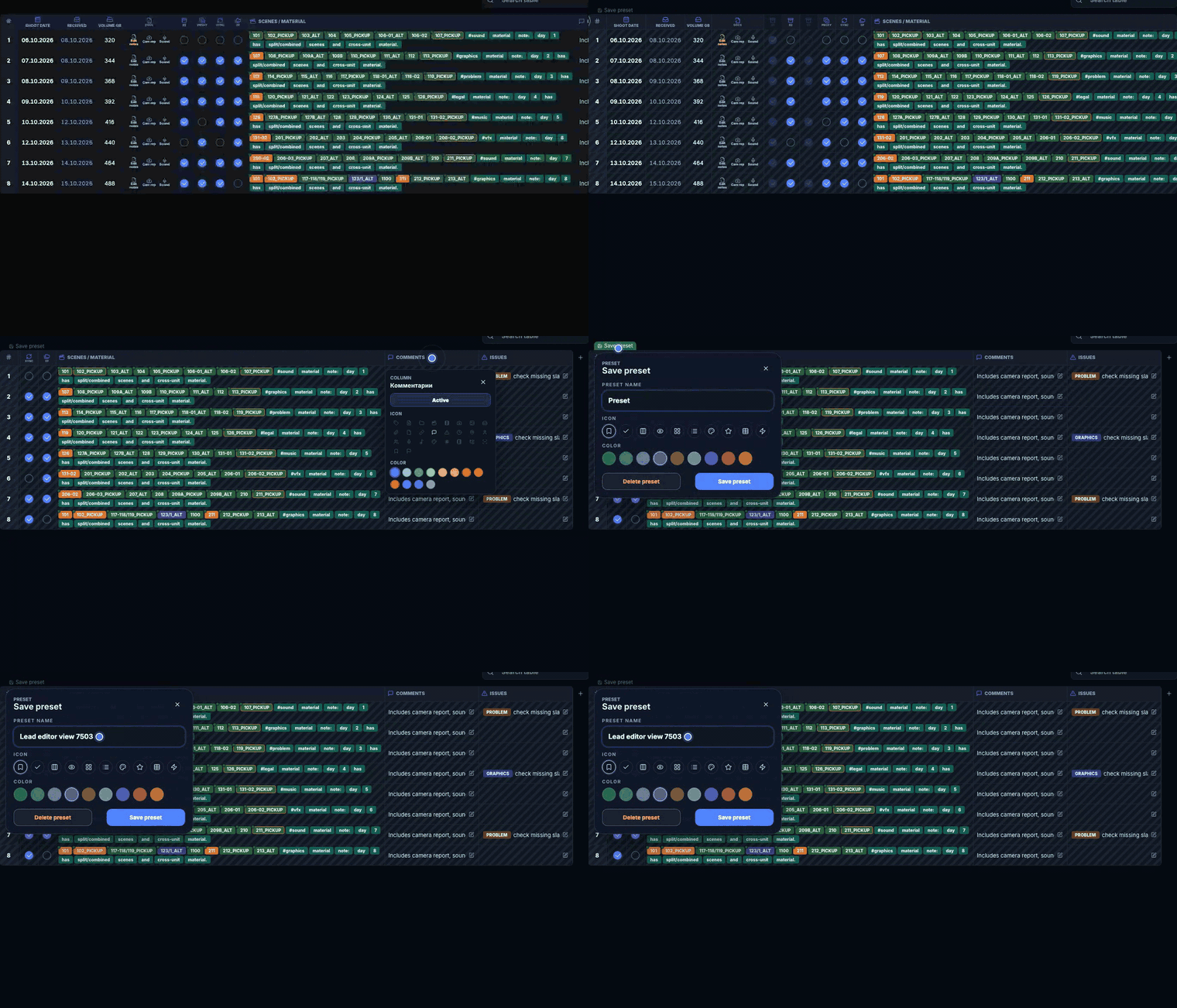
What you can change
- Show or hide columns.
- Change width, order, color, and icon.
- Add custom fields: text, number, date, timecode, checkbox, link, list.
- Configure expected document types in Docs.
Keep it usable
- Do not add a separate column for every rare situation.
- Technical documents usually belong in Docs, not new checkboxes.
- Keep one full preset and one compact working preset.
- Deleting a custom document type also deletes its attached files.
Edit
5. Editing Progress
Edit shows the project from the editing perspective: episodes, scenes, readiness, edit status, duration, script, and linked documents.
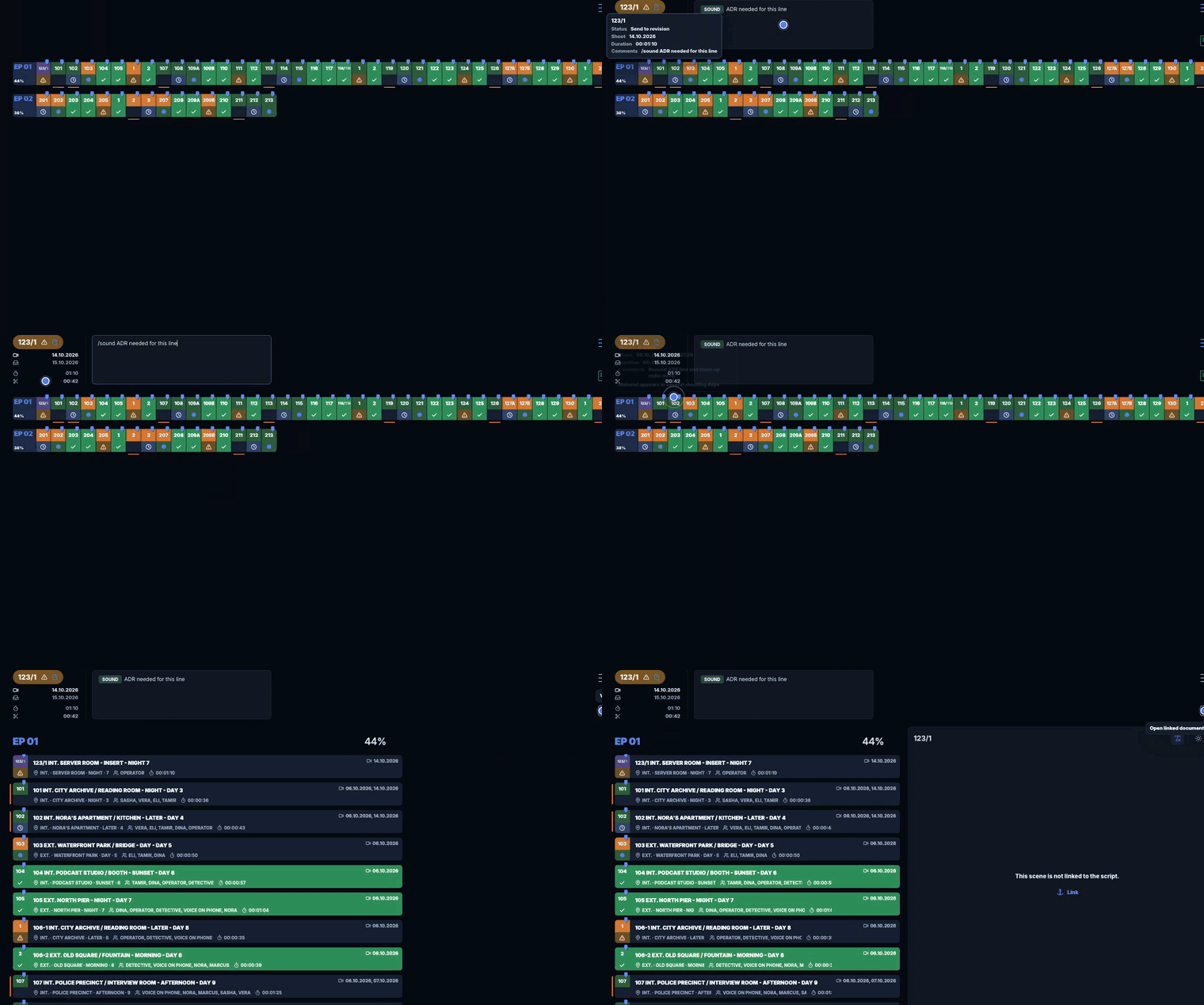
Scene workflow
- Select an episode and scene in horizontal or vertical layout.
- Check the Source signal: shot, received, ready, or needs attention.
- Open the script or edit-note page when scene evidence exists.
- Enter actual duration if it differs from the script or matters for assembly.
- Add an editor comment or tag if a future task is needed.
- Set status: assembly, in progress, revisions, approved, or removed from cut.
Source link. If a scene came from edit notes as off-script, keep it as production-added or relink it later. The important part is that Source, Settings, and Edit remain conceptually aligned.
Tasks
6. Post-Production Work
Tasks are for work that cannot be safely tracked by one comment: they have assignee, deadline, materials, stages, statuses, and result.
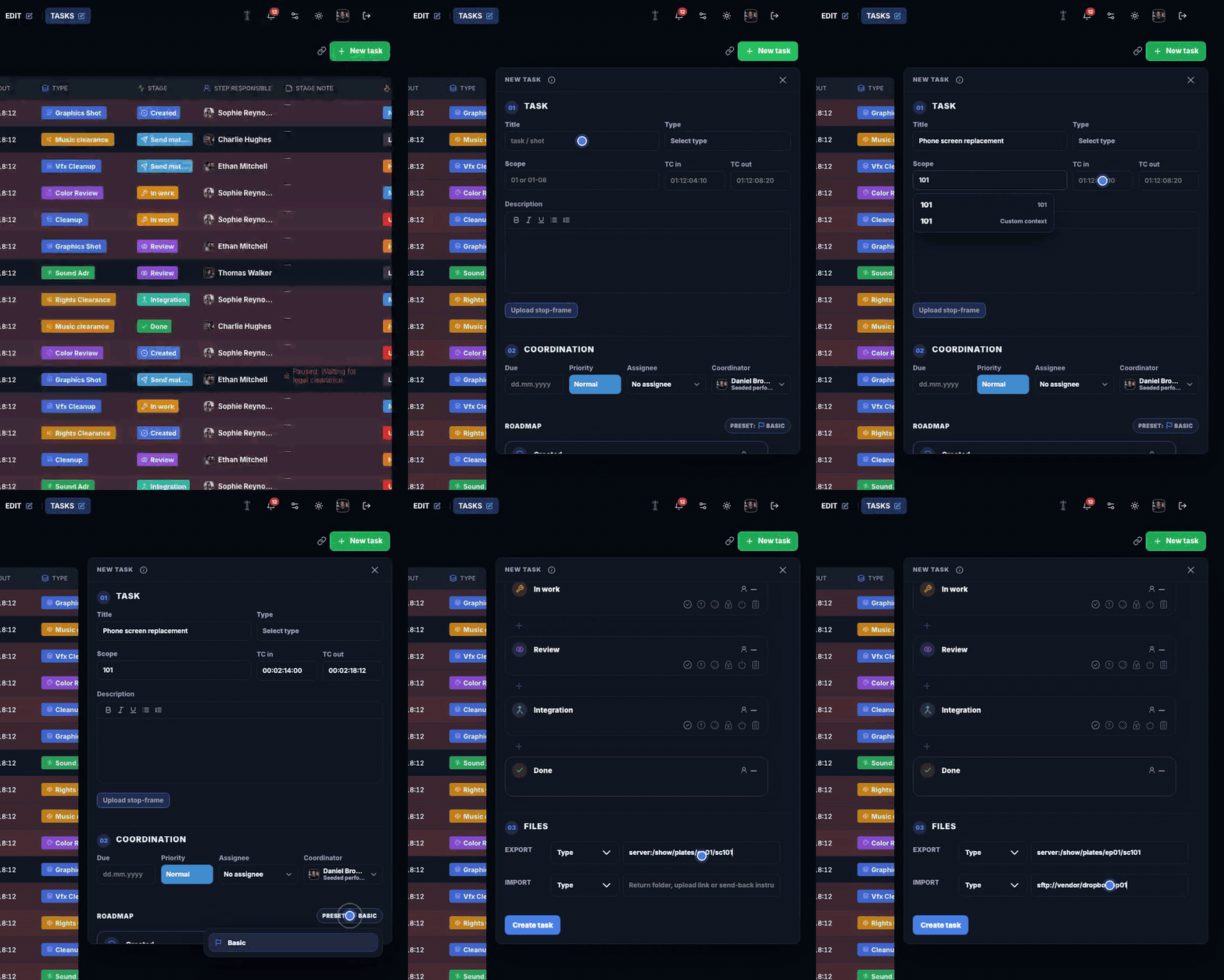
When to create one
- A separate performer is needed.
- There is a deadline or priority.
- Files must be sent and a result returned.
- The work has several stages.
Minimum task
- Title and type.
- Scope: episode, scene, or general.
- Description and stop frame when useful.
- Assignee, deadline, priority.
- Roadmap and stage owner.
Links
- Magic link
- Personal performer link with status editing.
- Share link
- Filtered table link without editing.
Team
7. Members, Access, and Outside Performers
Access is easiest to manage by tabs. This lowers the chance of accidental edits and keeps each user’s interface focused.
Real users
- Use when someone needs to log in to the project.
- Access can be limited to Settings, Source, Edit, or Tasks.
- Name and email are prefilled in feedback and service forms.
- Access can be disabled without removing project history.
Virtual members
- Useful for outside performers without accounts.
- Let you assign tasks, roles, and responsibility.
- Can be used in roadmaps and performer lists.
- Can later be replaced by a real user.
Signals
8. Tags, Signals, and Smart Search
Tags turn observations into clear signals, while smart search helps find the right days, scenes, or tasks quickly.
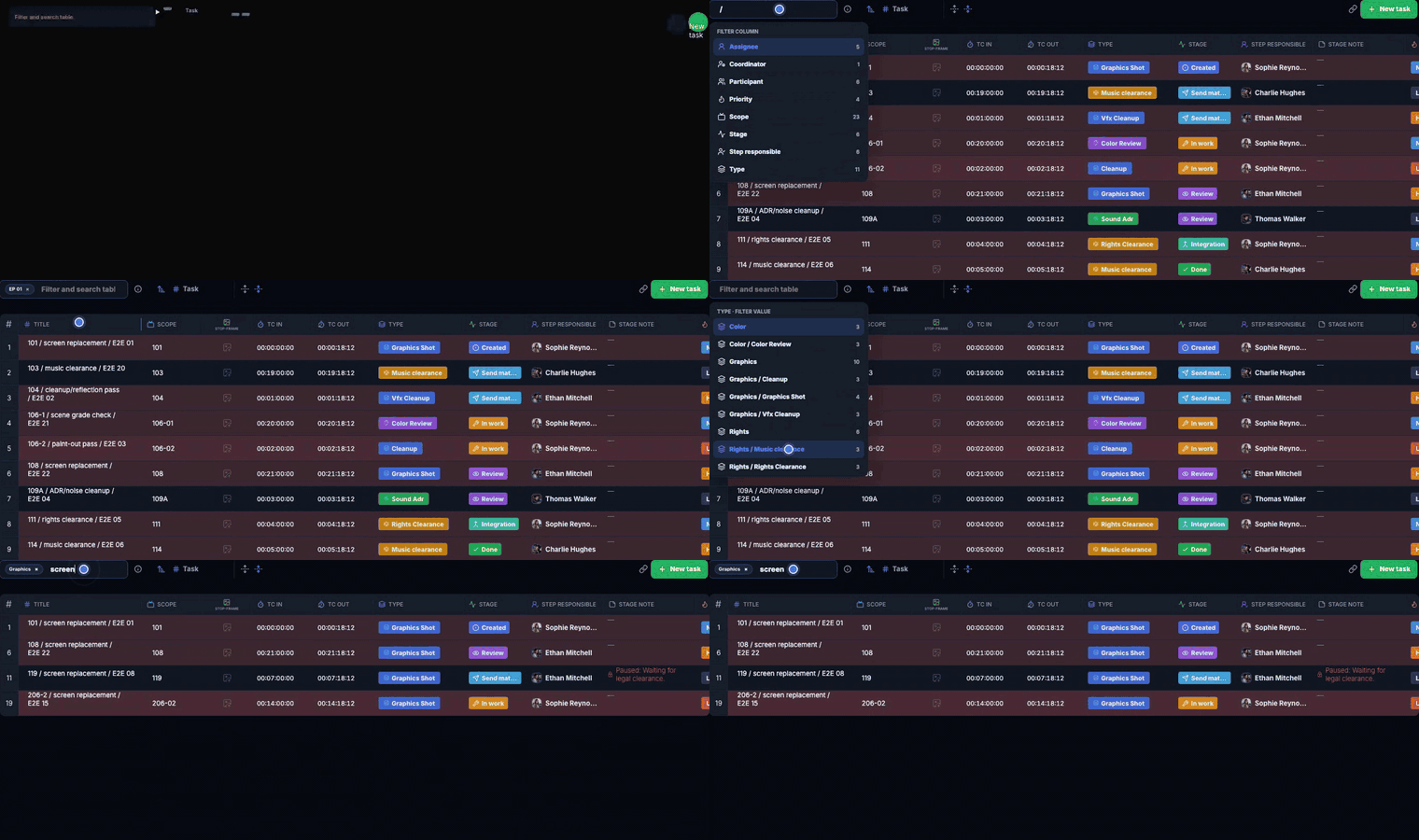
Use tags
- In a Source or Edit text field, type
/to open project tags. - Choose a tag: sound, graphics, ADR, rights, QC, or a custom tag.
- Add a short note so the coordinator understands the context.
- If the signal requires work, create a task or move it into Tasks.
Troubleshooting
9. If Something Looks Wrong
Most CutKit issues are not crashes; they happen when data lands in the wrong layer: plan, fact, document, scene, or task.
Extra dates appeared
Check Settings input and the calendar. If a date was parsed incorrectly, remove the extra day before attaching documents to it.
OCR found a strange scene
Use the review highlight. If it is a date, take, page number, or technical code, remove it. If it is a real off-script scene, keep it.
Docs will not open
Check that a document type is selected and a file exists. With several types, expand detailed mode and click the exact icon.
Edit has no scenes
Add project structure or import a script in Settings. Source can exist without a script, but Edit needs scene structure.
A task is invisible to a performer
Check filters, assignee, and link type. Magic link shows personal tasks; share link shows the current table filter.
Contact CutKit
Open Feedback, choose a topic, and describe the issue. If you are signed in, name and email are prefilled.